The main advantage of the system is the integration of CRM with project management. Thus, users can see both the status of negotiated deals and those in progress in one place. Thanks to the invoicing module, completed work can be easily transferred to invoices.
A comprehensive tool for detailed project management, task management, human resources, and CRM, including invoicing all in one.
Key Functionality
- Company Management;
- User management, various user roles, user permissions according to role;
- Company data management;
- User time options and absences management;
- Project Management;
- Project management including detailed settings;
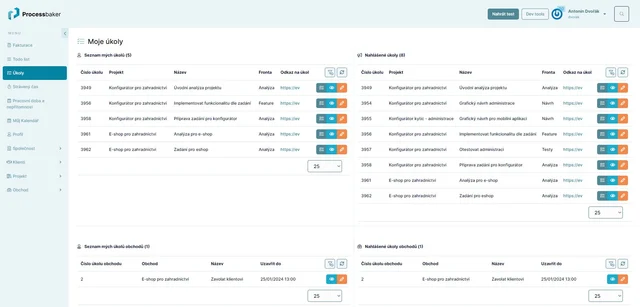
- Task management within projects, changing their status, various views of tasks including calendar, kanban;
- Time logging spent on tasks;
- Deal and Client Company Management;
- Invoicing.
Project Management
The system allows very detailed and clear project management (or their sub-projects), creating tasks within projects, assigning tasks to users, tracking time spent on tasks, and invoicing clients based on the time spent.
There are various ways to view the project status, tasks, plan tasks over time (set the start and end of a task or schedule tasks into project stages), verify plan adherence, activity logging of users, and much more.
Systembaker offers extensive customization options for all parameters according to your needs.
There are various ways to view the project status, tasks, plan tasks over time (set the start and end of a task or schedule tasks into project stages), verify plan adherence, activity logging of users, and much more.
Systembaker offers extensive customization options for all parameters according to your needs.
- List of Projects - a regular user sees only projects assigned to them, an administrator with the right permissions sees all projects.
- Creating a project can be done manually or based on a template. Templates expedite project creation, especially if the user frequently creates projects of a similar type.
- It is possible to create a hierarchy of projects, where one project can have one or more sub-projects. These can inherit settings from the parent project for ease of work.
- Projects can be assigned:
- Client entities,
- Users - users added to the project can work with the project and its tasks (the user's ability to work in the project depends on the role assigned within the project).
- Tasks - including the option of repeating tasks. Tasks can be set with task queues (e.g., "Analysis," "Negotiation"), priorities (e.g., "Urgent" or "Rush"), task statuses ("New," "Completed," "Overdue," etc.).
- Detailed Project Settings - users can customize all dictionaries according to their needs (e.g., task queues, their priorities and statuses, etc.).
- Based on hours worked on tickets in the project, invoicing can be performed.
- Logging of changes in tasks - a list of changes users made when working with project tasks.
Tasks
In each project, tasks can be created and worked on, time can be tracked in tickets, and the system is capable of calculating the percentage completion of tasks and thus the entire project.
Tasks can be displayed in many different ways:
Tasks can be displayed in many different ways:
- List of Tasks - a clear table of all tasks
- The default view shows unfinished tasks, but tasks can be further filtered as desired (e.g., show only completed tasks or only tasks from the "Analysis" queue, assigned to a specific user, etc.)
- Allows bulk editing of tasks (e.g., bulk assignment of multiple tickets to a user).
- Related tasks for each task can be displayed.
- Tasks can be edited directly from the list.
- Plan - a view of tasks in terms of plan adherence. This screen displays tasks divided by versions (stages) of the project; the system automatically calculates the estimated time to complete all tasks and the current completeness of the project (displays as a percentage and graphically).
- Dashboard - display of tasks through a kanban widget. Tasks are divided into columns by ticket queue (e.g., "negotiation," "analysis," etc.). Ticket assignment to a queue can be easily changed by dragging and dropping with the mouse.
- Calendar - tasks are displayed in the calendar based on their start and end times.
- Time Spent - a list of all time records for a given project, which also provides an aggregated view by start time, user, or task.
- Task Groups - users can create task groups for clarity from various projects - for example, a user can create a "Graphic Design" group and include all tasks related to graphic design regardless of the project. Alternatively, an administrator can use a group to give access to a task to a user who is not a member of the project. For example, create a group of tickets for external workers who do not want to give access to the entire project.
For tasks, it is possible to set, among other things
- Queues - used to determine the type of task, e.g., "Analysis," "Negotiation," "Graphic Design," etc.;
- Priorities - e.g., "Urgent" or "Rush";
- Statuses - e.g., "New" or "Completed," etc.;
- Checklist - in a task, a checklist of parts to be completed can be created. After completing an item in the checklist, the user checks it off, and the system automatically calculates the percentage completion of the task;
- For easier sorting of tasks, you can also set: task categories, risks, difficulty, tags;
- Subtasks - if a task is very extensive, it is possible to create sub-tickets for its individual parts and either complete them gradually or assign them to different users. Based on the completeness of sub-tasks, the system calculates the completeness of the parent task;
- Related Tasks - in the system, tasks that are related but not directly sub-tasks can be linked;
- Desired start and end of work on the task.
Other task options
- To tasks, it is possible to attach files.
- Task Hierarchy thanks to the ability to specify a parent task (nesting level is not limited).
- In each task, a chat module for user communication is available.
- Task Followers - these are users who will automatically receive email notifications if the task is edited. A user can manually add themselves as a follower, or the system can automatically add the author of the ticket or the user to whom the ticket is assigned as a follower.
- Change History on the task
- Recurring Tasks - in projects, it is possible to create tasks that repeat at a chosen frequency (week, month, quarter, year);
- The system can calculate the task completion based on the checklist or sub-tasks, or the completion rate can be entered manually.
Time Tracking
The system allows measuring the time a user spends on a task.
Starting the timer is linked to a specific ticket. The user selects which task they are working on and starts the timer; after finishing the work, they stop the timer.
The measured time is saved to the ticket and is also recorded in the time spent on the project.
Starting the timer is linked to a specific ticket. The user selects which task they are working on and starts the timer; after finishing the work, they stop the timer.
The measured time is saved to the ticket and is also recorded in the time spent on the project.
Invoicing
The system allows for invoicing. For each project, it is possible to set either an hourly rate or the value of the entire project. Based on the hours worked on tasks in the project, invoicing to the client entity can be done (including the ISDOC format).
The system checks account movements, matches payments to advance invoices, and issues a final invoice.
For regularly recurring payments, system automatic invoicing is possible. For regularly recurring payments, the system can also do automatic invoicing.
The system checks account movements, matches payments to advance invoices, and issues a final invoice.
For regularly recurring payments, system automatic invoicing is possible. For regularly recurring payments, the system can also do automatic invoicing.
Deals and Clients
The system allows managing and controlling deals with client entities, recording client data, and assigning traders to deals. The logic of managing deals is similar to that of projects (assigning users to deals and creating tasks, different task and deal statuses, etc.). Deals have some specific functions compared to projects (e.g., entering the order value, discussions directly related to the deal, etc.).
Company and User Management
Of course, there is no shortage of own company and their human resources data management.
The system allows, among other things, managing users, assigning them various roles. Users then gain access to only parts of the system they need based on their role (e.g., deals will be available to traders but not programmers).
Users can also edit their profile, fill in working hours and planned absences in the calendar, so information about their availability can be obtained by their colleagues.
The system allows, among other things, managing users, assigning them various roles. Users then gain access to only parts of the system they need based on their role (e.g., deals will be available to traders but not programmers).
Users can also edit their profile, fill in working hours and planned absences in the calendar, so information about their availability can be obtained by their colleagues.
TODO Lists
Each user has a section in the system for creating personal Todo lists, which are displayed clearly in two columns (completed / incomplete). Items with set priorities and importance are color-coded for clarity.